- Open Protect PDF and add the file, or up to 20 files that should share the same password. Each row shows the page count and a preview.
- Leave Protection on Password to open. Type the password and repeat it; the button stays disabled until both match, so a typo cannot lock you out of your own file.
- Optionally open Also restrict what others can do and tick printing, copying, editing or comments. Compliant viewers may enforce these flags for someone who opens the file, but the flags do not prevent a determined recipient from copying or changing its contents.
- Click Protect and download the copy, named after the original with -protected added. The copy is reopened with your password before it is offered, so a file that failed that check would be reported rather than handed over.
Scroll the table sideways to see every column.
Choose the protection you need| Your goal | Choose | What the recipient needs |
|---|
| Keep the contents private | Password to open | The correct password to read the PDF. |
| Discourage printing or copying | Restrictions only | No opening password. Enforcement depends on the reader. |
| Require a password and request limits | Password to open + optional restrictions | The opening password; a reader that honours the permission flags. |
Practice an open-password roundtrip: Add the public four-page report to Protect PDF. Choose Password to open, type and repeat practice-only, then protect it. Reopen the downloaded file: it should request that password. Enter it and check all four pages. The password is only an invented teaching value; choose a private passphrase for a real document.
Practice file and tool: Download the synthetic practice file · Open the tool
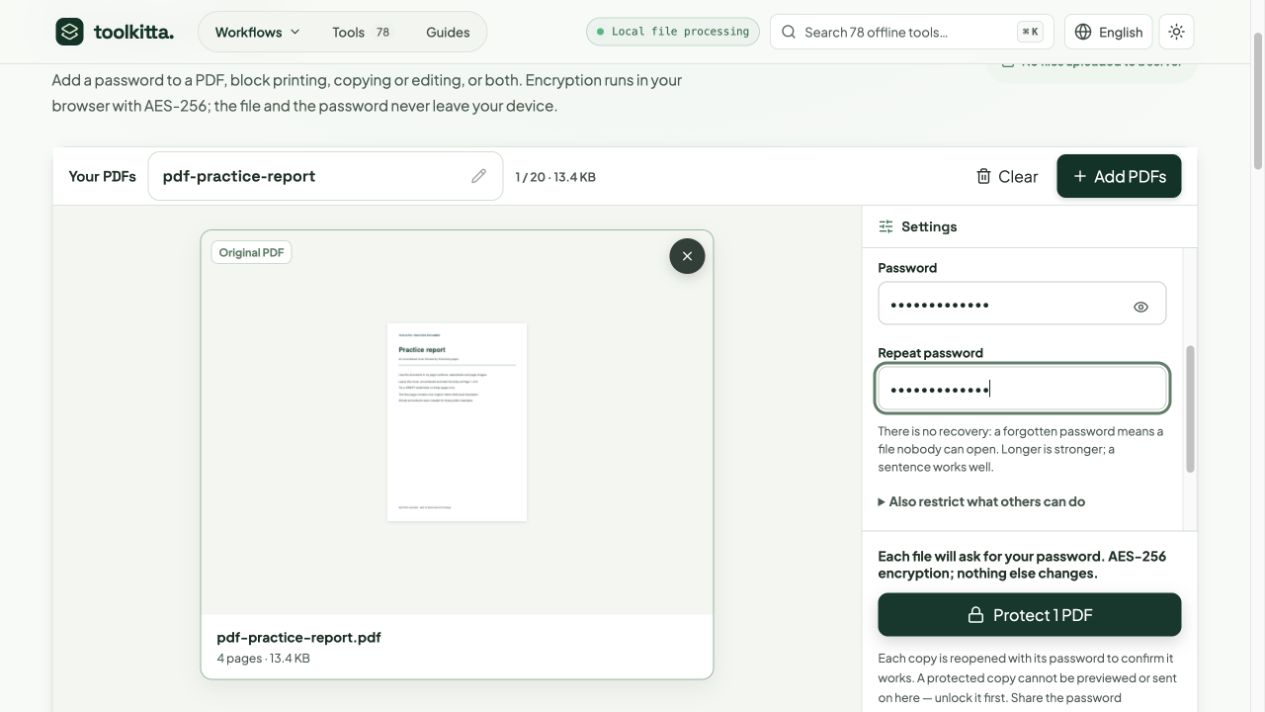 Real local example, 29 October 2026: the public four-page practice report with the password entered twice. The screenshot shows the English interface; the same controls are available in Turkish and Russian.
Adding a password
Encryption runs in your browser. The file and the password never leave your device, the password is not stored, and the original file on disk is not modified. Then share the password by a different route than the file: a message on another app, a phone call, in person. Sending both together lets anyone with access to that message read the file.
Local check on 29 October 2026: Protect PDF processed the public four-page sample successfully (13.4 KB to 14.2 KB), including its built-in reopen-with-password verification. This is a Toolkitta export check, not a compatibility certification for every PDF reader. Open your downloaded copy in the recipient’s intended reader and check all pages before sharing.
An open password is the real protection
Password guidance: Adobe: document-open and permissions passwords
An open password encrypts the PDF content and requires a valid password to read it. Protect PDF writes AES-256 using security-handler revision 6. Someone with the file can still attempt to guess a weak password offline, and anyone who knows the password can share the decrypted content.
Use a long, unique password that is hard to guess; avoid personal details and familiar quotations. Guessing resistance depends on how the password was chosen, not just its length or number of words. Keep it in a password manager and keep your unprotected original somewhere private. Toolkitta has no password-recovery service.
Restrictions only: useful, but not a lock
Sometimes the document should be readable by anyone but not changed: a price list that must not be edited, a proof that should not be printed, a form to fill in but not restructure. Switch Protection to Restrictions only, tick the requested restrictions, and the file opens without a password. Enforcement depends on the viewer; some readers ignore individual permission flags.
Be clear about what this is. A restriction-only file is encrypted with an empty open password, so any PDF library can decrypt it, and whether the permission flags are honoured is the reader's choice. Toolkitta's own Unlock PDF lifts them without asking for anything, and so do many desktop tools. Restrictions prevent accidents and state your intent; they do not keep content from someone determined. If confidentiality matters, set an open password — with or without restrictions on top.
- Printing: the print command is disabled, including print-to-PDF in most viewers.
- Copying text and images: selection and copy are disabled; accessibility readers are still allowed to extract text, and screenshots are naturally unaffected.
- Editing pages and content: inserting, deleting, rotating and altering pages is disabled.
- Adding comments and filling forms: annotations and form entries are disabled; tick this only if the form is meant to be read, not completed.
Which viewers open the protected file
Use a current PDF reader that supports AES-256 revision 6. Test the downloaded copy in the recipient’s intended application before relying on it. If it does not open, check the password and try a compatible reader; a damaged file or unsupported encryption can also cause an error.
Inside the file, nothing else changes. Pages are not copied or flattened, so bookmarks, links, comments, editable form fields and the document's metadata are kept — the metadata is encrypted with the rest, so the title and author are not visible without the password either. The exact size change depends on the document and how it is rewritten.
What Protect PDF will not do
It refuses files that already carry a password or restrictions, because layering encryption over encryption is never what anyone wants; remove the old protection with Unlock PDF first, then protect with a new password. It refuses digitally signed documents, since re-saving would invalidate the signature, and XFA forms, which cannot be rewritten faithfully in the browser. It does not redact: a password protects the whole file, it does not remove anything from it. If parts of a document must not be seen even by the recipient, remove them before protecting. This quick tool also refuses empty digital-signature fields; ask for a standard copy without those fields if an unsigned form is rejected.
Finally, it cannot help you recover a password you set and forgot. That is not a missing feature; it is what makes the protection real. Keep the unprotected original where you keep your other important files, and treat the protected copy as the one that travels.