Scroll the table sideways to see every column.
Official specifications last checked on 15 October 2026. Dimensions are export recommendations unless a minimum or upload limit is stated. Click a size to open Image Cropper with that exact target; smaller source images are not enlarged unless you allow it.
Choose the placement, then the aspect ratio
An aspect ratio is width divided by height. A 1080 × 1440 image is 3:4; 1080 × 1350 is 4:5. Both are portrait shapes, but they keep different parts of a photograph. Start with the placement you intend to publish, then position the crop around your subject. Exporting a square and hoping it will fit every banner gives you less control.
Pixels determine how much detail is available; they do not determine composition. Downscaling a large original is usually useful. Enlarging a small image does not recover missing detail. Platforms can resize, crop, pad or recompress an image differently across placements and devices, so always inspect their publishing preview.
Feed crops, profile circles and banner safe areas
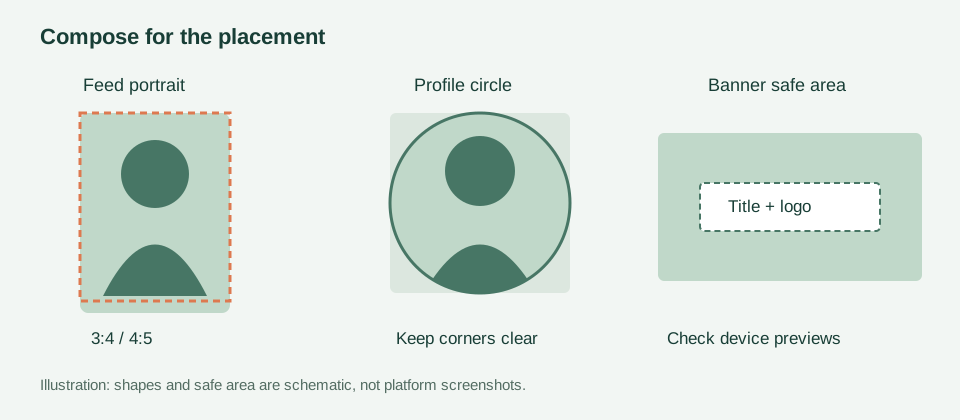 Illustration of three different composition checks. The banner safe area is schematic, not a universal pixel template.
For a feed image, put the subject inside the intended rectangular frame. For a profile image, upload a square but keep the face or logo inside a centred circle: the corners may not appear. For a banner, place essential words away from edges and profile-photo overlays. A single safe-area template cannot describe every platform or device.
Instagram photo sizes: 3:4, 4:5 and square
Instagram’s photo help now supports ratios from approximately 1.91:1 to 3:4 at widths up to 1080 pixels. Use 1080 × 1440 for a 3:4 portrait, 1080 × 1350 for 4:5, 1080 × 1080 for square or 1080 × 566 for landscape. The older 4:5 portrait remains useful, but it is no longer the tallest supported feed photo.
Stories and Reels are different placements. A practical full-screen design target is 1080 × 1920 (9:16), rather than a feed-photo export. That is a design target here, not a claim about every accepted upload. Leave room for interface overlays and review the placement preview before publishing.
Check the source or crop now: Instagram photo resolution · 1080 × 1440 · 1080 × 1350 · 1080 × 1920
Facebook Page cover and profile images
Facebook recommends a 320 × 320 Page profile upload, displayed in a circle. For a Page cover, its fast-loading recommendation is an sRGB JPG at 851 × 315 under 100 KB, with a minimum upload of 400 × 150. The display itself differs: the current help describes 16:9 on computers and 2.4:1 on phones. The profile picture can overlap the cover, so a single upload rectangle is not a guaranteed visible region.
These are Page cover and profile specifications. Do not apply the cover dimensions to feed photos, ads or event artwork. A square 1080 × 1080 or portrait 1080 × 1350 is a practical photo-post starting point, rather than an official requirement asserted by this guide.
Official source and presets: Facebook Page dimensions · 851 × 315 · 320 × 320
LinkedIn post images, personal banners and company covers
LinkedIn distinguishes a custom image on a Page post with a URL from an image-only post. Its link-post guidance is 1200 × 627 (about 1.91:1); other ratios can appear with padding on mobile. A personal background photo uses 1584 × 396, while the current company Page cover recommendation is 1512 × 256. These are separate placements, so do not export a personal banner using a company-cover preset.
Keep company-cover details centred and away from edges; LinkedIn says the image may be trimmed horizontally or vertically to fit a screen. Page images allow PNG or JPEG up to 3 MB; the personal background limit is under 8 MB. Check the correct limit for the placement you are editing.
Official sources and presets: LinkedIn Page image specifications · Personal background photo · 1200 × 627 · 1584 × 396 · 1512 × 256
X headers and profile images
X recommends 1500 × 500 for headers and 400 × 400 for profile photos. Its help warns that header edges can be cropped on different displays, so keep key words away from the top and bottom. Profile photos have a 2 MB file limit. A 1600 × 900 post export is a practical wide-image preset, not a promise that every timeline or multi-image layout displays it uncropped.
Official source and presets: X profile and header images · 1500 × 500 · 400 × 400
YouTube thumbnails, banners and Pinterest Pins
YouTube currently recommends 3840 × 2160 for video thumbnails (minimum width 640). The upload limit depends on the device: 2 MB for video thumbnails on mobile, 50 MB on desktop. A resolution recommendation and a file-size limit are separate checks; a detailed 4K image can still need compression. The cropper retains a 1280 × 720 option for smaller sources without claiming it is the current recommended resolution.
For a YouTube channel banner, export 2560 × 1440; the minimum is 2048 × 1152, with a 6 MB limit. At that minimum size, YouTube defines a central text/logo safe area of 1235 × 338. Scale that area proportionally for a larger canvas, and use YouTube’s preview to check phone, computer and TV crops.
Pinterest’s business specifications recommend a 2:3 standard image Pin, for example 1000 × 1500. Taller images can be cut off in feeds. Put the key message inside the intended frame and check the Pin preview; do not confuse a standard image Pin with video or other ad formats.
Official sources and presets: YouTube thumbnails · YouTube banner guidelines · Pinterest product specifications · 3840 × 2160 · 2560 × 1440 · 1000 × 1500
Export several sizes from one original
- Open Image Cropper and add your original photo. Choose a Platform size, or use a dimension link in the table.
- Move the crop frame to keep your subject inside it. Check the output dimensions; small originals are not enlarged unless you enable Allow enlargement.
- Export the first version, then choose another preset and reposition the frame. Work from the original instead of reimporting a compressed export.
- Preview each image in its destination. If it exceeds that placement’s byte limit, send it to Image Compressor, then check readability again before posting.
Choosing a preset fixes the target shape and dimensions; it does not add missing pixels, reserve interface space automatically or guarantee acceptance by a platform. Keep an original copy so you can revise the crop when a placement changes.